
Accessing the Platform on Mobile Devices
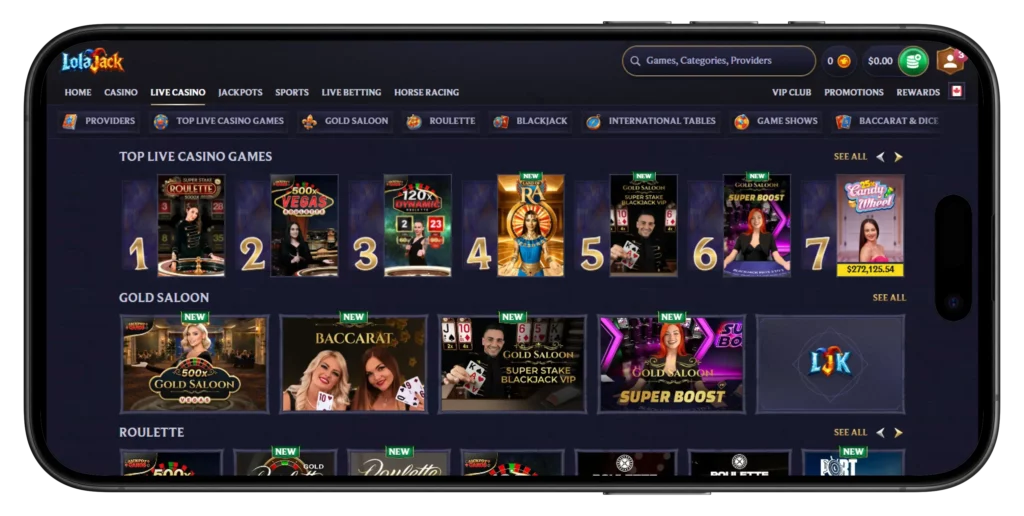
Okay, real talk. When was the last time you sat down at a desktop to spin a slot? Been a while, right? These days most of us play from the bus, the couch, the kitchen while pasta boils. So the big question is: does the mobile experience hold up, or does it feel like a squashed desktop site? Short answer – it holds up. Pretty well, actually. There’s no separate app to hunt down in the App Store or Play Store, which throws some people off at first. Instead you get a proper mobile site plus a Progressive Web App (PWA) you can save to your home screen. Looks like an app, opens like an app, no download queue and no store review nonsense.
Open the site on your phone right now and take a look for yourself.
Getting Started on iOS and Android
Getting rolling on a phone takes about a minute. Open whatever browser you already use – Safari if you’re team iPhone, Chrome or Samsung Internet on Android – and punch the site address into the URL bar. The homepage snaps into a mobile layout, with the main menu tucked behind a little hamburger icon in the corner. Register and Log In buttons are up top where you’d expect them. New players tap Register and fill out the quick form; if you already have an account, just log in and you’re dropped straight into the lobby.
Here’s the thing – iOS and Android basically behave the same way. Same tiles, same live tables, same coupon, same cashier. No secret Android-only feature, no iPhone bonus. If you’ve saved your password to your browser’s autofill (or you’ve got Face ID or fingerprint unlock going), logging in becomes a one-tap thing.
Little tip that took me embarrassingly long to figure out: flip your phone sideways for live-dealer games and sports. The extra width makes a genuine difference – buttons stop feeling cramped and odds are easier to read. Grab your phone and see how it feels.
Web-Based Access Versus Installation
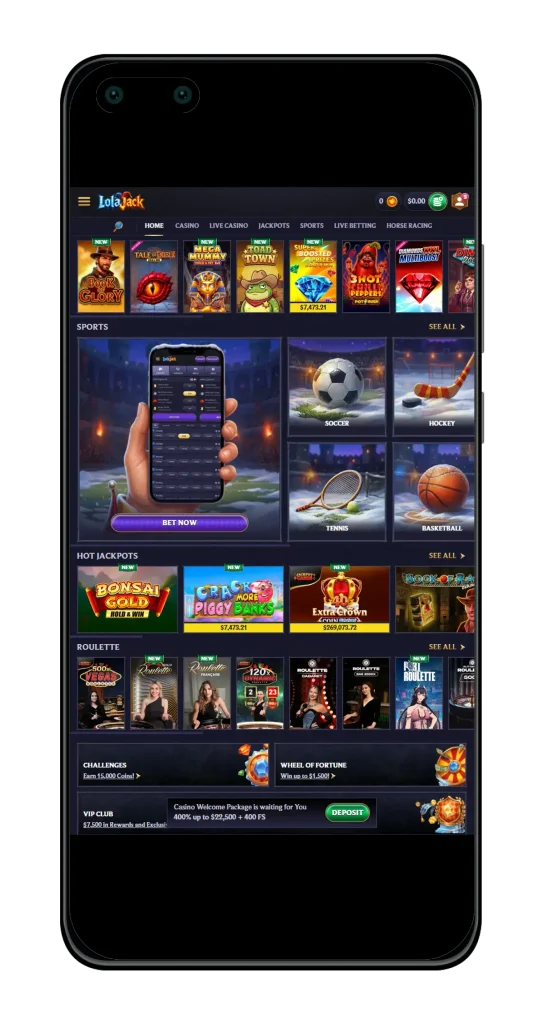
This is the bit that trips people up. A lot of casinos still push you to “download the app” like it’s 2016. Here the setup is different – and honestly, better in most ways. There’s no .apk file floating around and nothing to install from the App Store. You’ve got two clean options: use the site straight in your browser, or add the PWA shortcut so it sits on your home screen with its own icon.
Which one should you pick? Depends on how often you play, really. If you drop in once a week to spin a bit, the mobile site is totally fine. Type the URL, log in, play, done. But if you’re checking in daily – or you just hate typing URLs – the PWA is the move. One tap and you’re in. Plus, since you’re launching from your own shortcut, there’s zero risk of accidentally landing on some knockoff site that copied the logo. Both routes give you the whole platform. Nothing’s locked behind a “download the app” wall.
Here’s the same thing in table form because tables are easier to skim:
| Access Method | Setup Time | Home-Screen Icon | Data Use | Best For |
| Mobile Website | Instant | No | Same | Casual, quick visits |
| PWA (Home Shortcut) | ~20 sec | Yes | Same | Daily play |
| Native App (iOS/Android) | N/A – not available | – | – | – |
Try both, see which one suits your habits, and go with that.
Creating a Home-Screen Shortcut
Adding the shortcut takes maybe 20 seconds – so it’s honestly silly not to do it. On iPhone, open the site in Safari, tap the Share button at the bottom (square with an up-arrow), scroll until you spot “Add to Home Screen”, rename it if you feel fancy, then hit Add. Done. A rounded icon lands on your home screen, indistinguishable from a real app.
On Android it’s basically the same. Open the site in Chrome, tap the three-dot menu top-right, choose “Install app” or “Add to Home screen” – the wording depends on your Android version. Sometimes Chrome nags you to install it after a few visits, which is helpful. Once pinned, it opens in a full-screen browser view with no address bar or tabs, so it genuinely feels like an app.
Just to be clear – this is a shortcut, not a real store install. Your phone’s app-management screen might not list it under regular apps; on Android look under “Installed by browser” if you’re hunting for it. Pin it once and never touch that URL again.
What You Can Do from Mobile
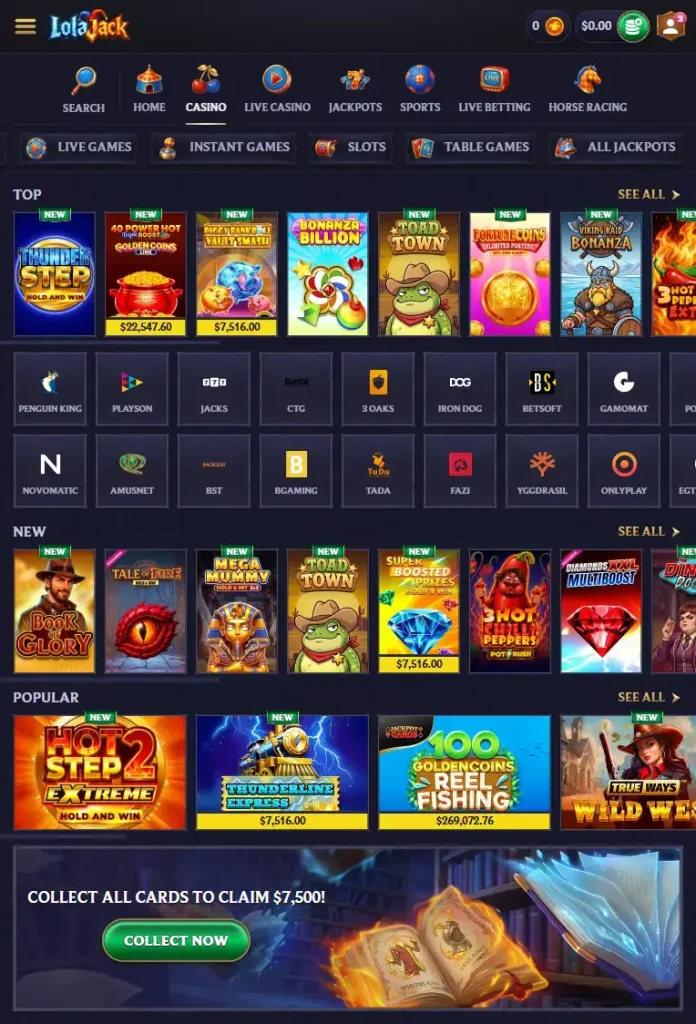
This is the bit that trips people up. A lot of casinos still push you to “download the app” like it’s 2016. HerMobile isn’t some watered-down cousin of the desktop version. It’s basically the whole thing, just re-arranged for your thumb. Every game, every payment method, every promo, every corner of the site. Live tables stream fine on both 4G and Wi-Fi (though obviously Wi-Fi is smoother for longer sessions), the sports coupon ticks in real time, and depositing via Interac feels just as quick as it does on desktop. Cashing out? Same flow, same speed.
Here’s a quick rundown of what you can actually do from the phone in your pocket:
- Spin thousands of slots – Gates of Olympus 1000, Sizzling Hot Deluxe, Book of Ra Deluxe Buy Bonus, plus every fresh release.
- Sit in on live tables – Speed Roulette, Blackjack 77, Sweet Bonanza Candyland, game shows, all of it.
- Bet pre-match and live – hockey, soccer, tennis, basketball, football, horse racing.
- Deposit via Interac (from just 10 CAD), Visa, Mastercard, Skrill, Neteller or crypto like USDT, BTC, ETH, LTC.
- Request withdrawals through the same cashier you’d use on desktop.
- Grab every active promo – Weekly Reload, Weekend Reload, Cashback, VIP bits.
- Spin the Wheel of Fortune, work through Challenges, spend Coins in the Shop.
- Ping live chat 24/7 or dig through the Help Centre.
A few small quality-of-life touches make mobile play actually enjoyable rather than just tolerable. You can enable push notifications through the PWA for bonus expiries. Screen orientation flips automatically for games that want landscape. Biometric login works if your browser plays nicely with it. Do everything you’d do at a desk, but from anywhere.
And one thing worth saying every time – even mobile play needs discipline. Set limits, take breaks, and never chase.
Fixing Common Mobile Problems
Even the smoothest setups hiccup sometimes. Here are the annoyances that come up most often and how to sort them without wasting your evening on a support ticket.
The usual suspects and their fixes:
- Wrong or misspelled URL – always type the exact domain, or use your PWA shortcut. Phishing sites love typo-squatting, so if the logo, colours, or login screen look even a little off, close the tab and start over.
- Ancient browser version – if games won’t load or the cashier just spins forever, update Safari (through iOS updates) or Chrome (from the App Store or Play Store). Old builds miss important rendering fixes.
- Cache and cookies clogged up – after a few weeks, cached files can go weird and mess with sessions. Clear browsing data for the site (Safari: Settings > Safari > Advanced > Website Data; Chrome: Settings > Privacy > Clear browsing data), then reload.
- Weak signal or shaky Wi-Fi – live tables and streams want a solid 4G at minimum. If the game stutters or odds freeze mid-tap, switch networks or move closer to the router.
- Login errors – check Caps Lock, confirm you’re using the right email or phone, and hit password recovery if you’re locked out. An active VPN can also mess with your location and block login.
- Two-factor headaches – if you keep getting “code invalid”, check your phone’s clock is set to automatic. Clock drift breaks TOTP codes surprisingly often.
- Deposit declined – ring your bank first. Loads of Canadian banks block gambling merchants by default on cards. Interac usually just works.
- PWA showing an old layout – remove the shortcut and re-add it from a fresh browser session. PWAs sometimes cache stubborn old versions.
If none of that untangles things, live chat is up 24/7 and usually cracks account-specific issues in a couple of minutes. For anything paper-trail-worthy – verification delays, disputed transactions, a bonus that vanished – email is your friend.
Bookmark the right URL, keep your browser updated, and mobile play stays smooth. One last thing: gambling is entertainment, not income. Set a session budget before you open the app, stick to it, and reach out to ConnexOntario or your provincial helpline if it stops feeling fun.